24 Best Free Video Editing Apps Without Watermark
Video editing can be done more easily and without logos, these apps work on your phone or computer and they won't slap any watermark on your videos.
If you're making videos for YouTube, teaching, sharing family stuff or just having fun, these apps give you clean, pro-looking results. They cost you nothing, keep your finished video clean and are easy enough to start, while still handling real editing work.
1. Shotcut
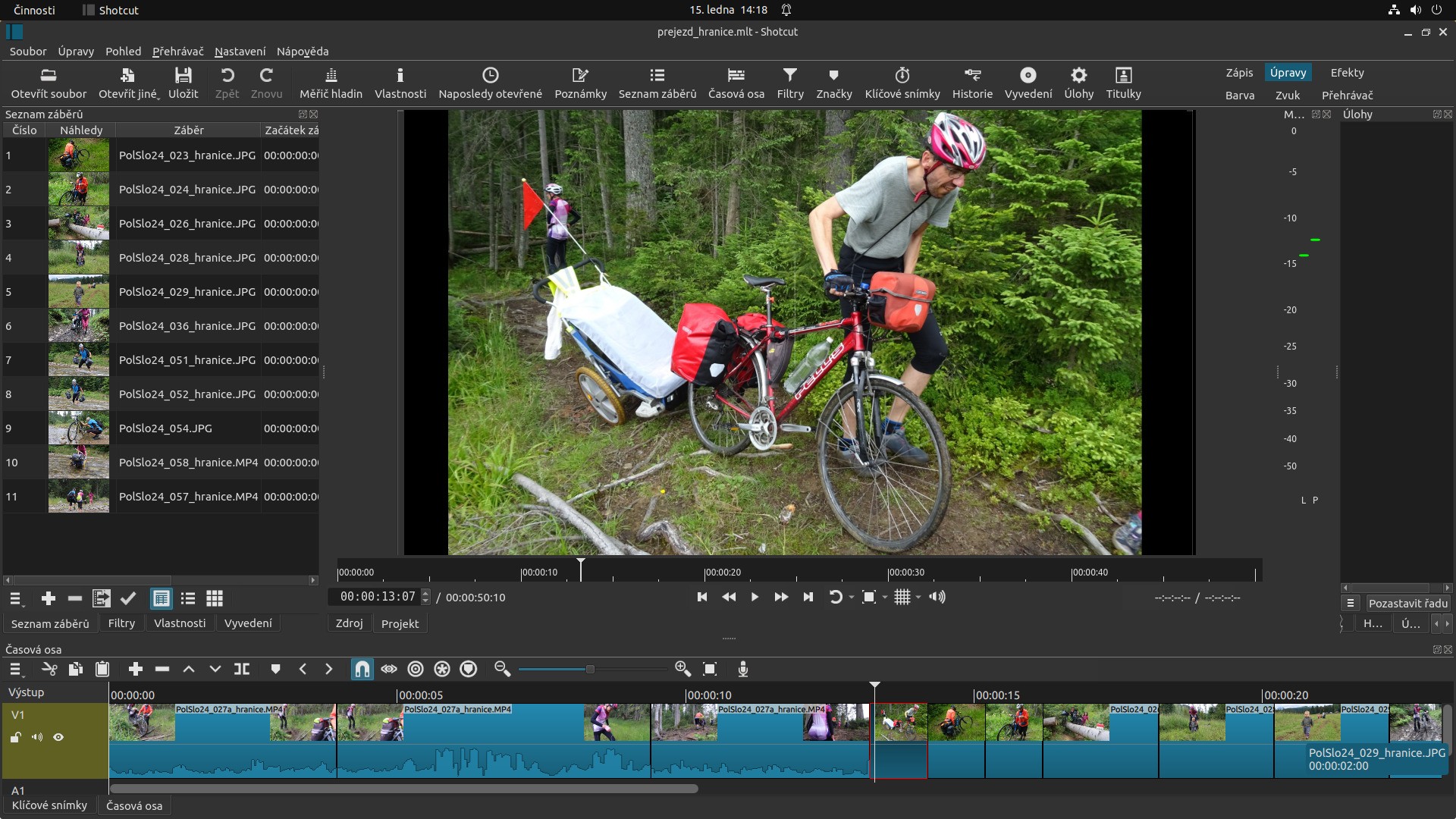
Shotcut works well with almost any video file you have. It’s free and open for anyone to use. You can move the windows around to fit how you like editing, put your timeline here, your preview there.
It has tools for sound and colour change. You can layer multiple video tracks without trouble. Even when working with super sharp 4K footage, it plays smoothly because it uses your computer’s power efficiently. It's free updates and extra tools are made by users, so it stays useful without costing you anything or adding watermarks.
2. DaVinci Resolve
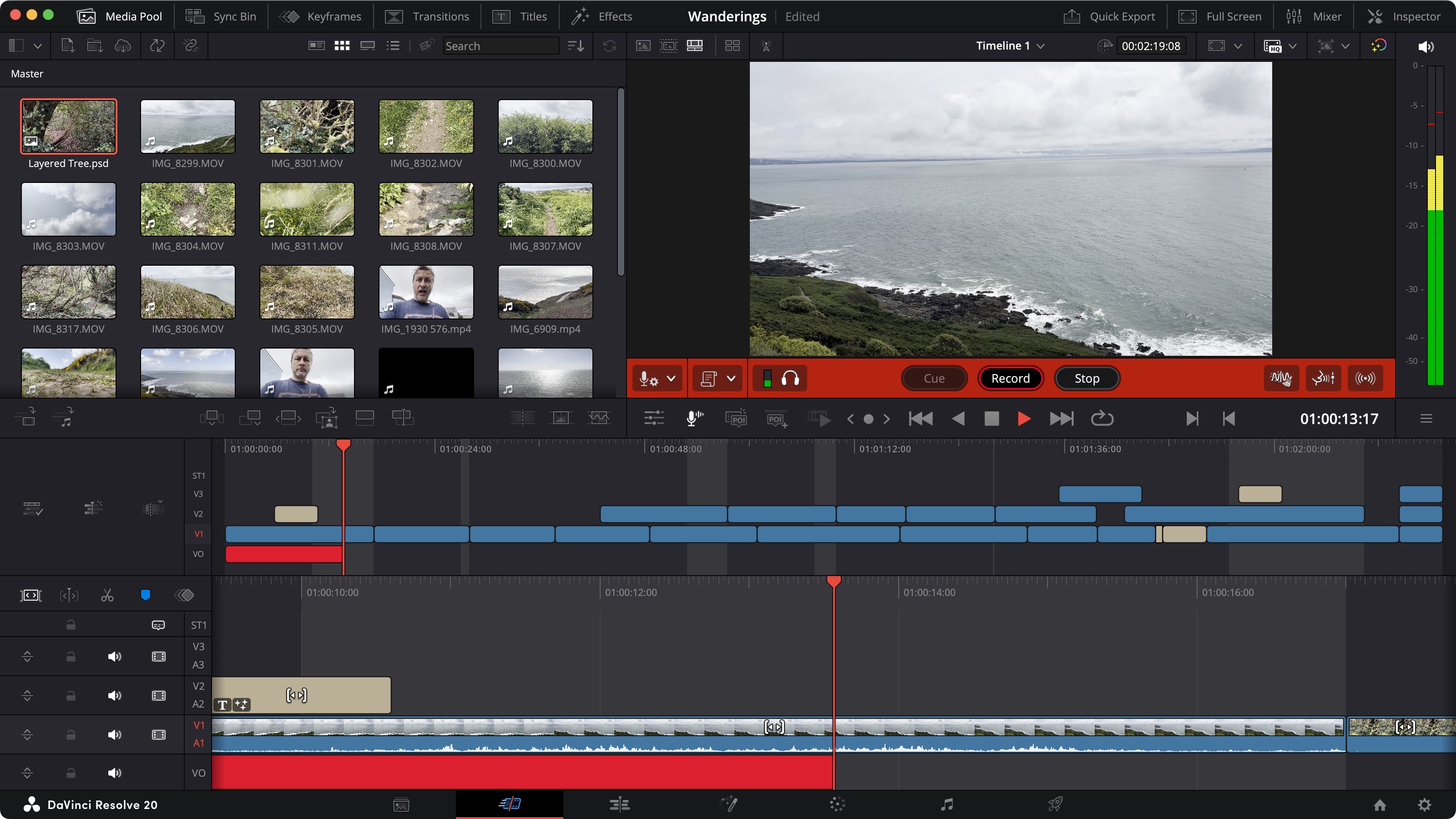
DaVinci Resolve does two big jobs really well: editing your videos and fixing colors, all for free. Its color tools are the kind professionals use, letting you adjust every shade and light level precisely. If you need to edit quickly, the Cut page simplifies things.
For detailed work, switch to the Edit page to fine-tune every second. It also handles sound like a pro studio balance volumes, clean up noise or re-record actor lines easily. Plus, you get special effects and animated titles right inside the program.
3. OpenShot
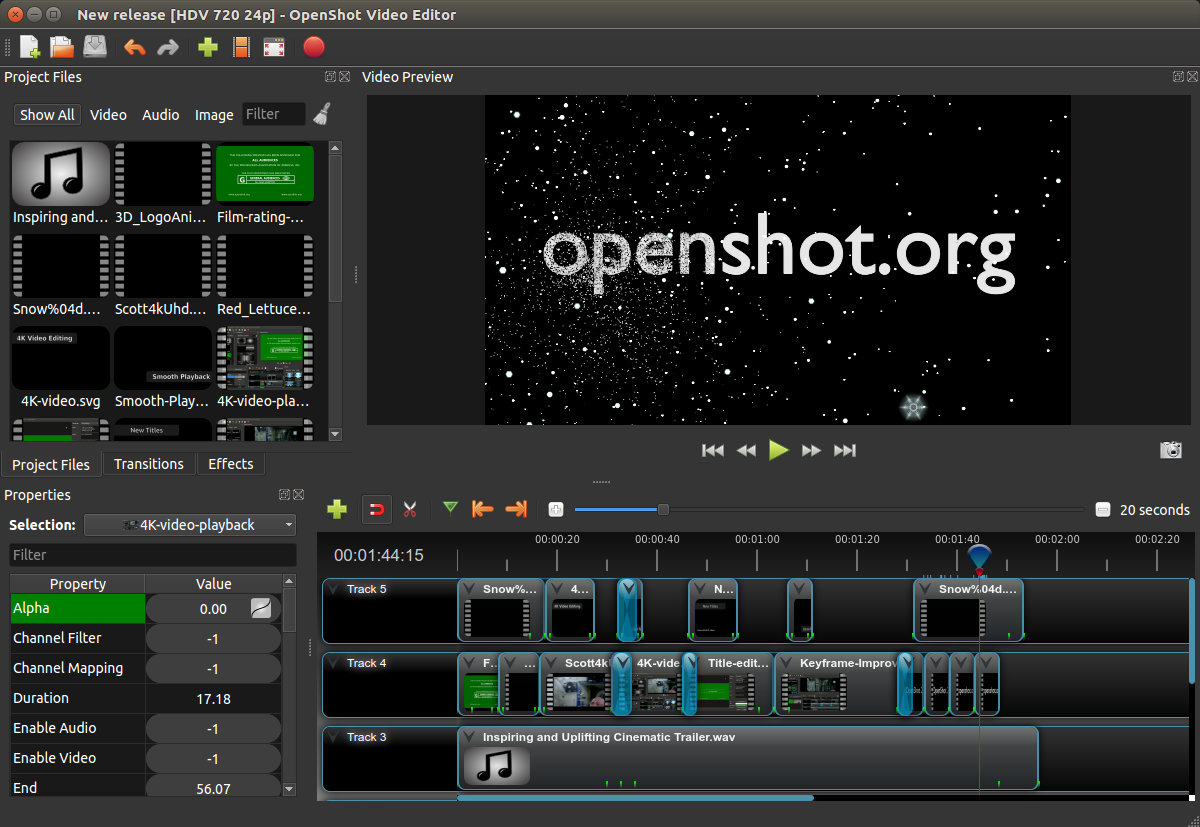
OpenShot makes video editing easy. Just drag your clips onto the timeline and start arranging them. You can layer as many videos or images as you need, resize pieces exactly how you want, and see changes instantly as you work.
Add smooth text intros or make objects move gradually across the screen with simple animation tools. Because it's open-source, people worldwide constantly help improve it, so it keeps getting better. Use it freely on Windows, Mac or Linux computers and no watermarks ever show up on your finished videos.
4. HitFilm Express
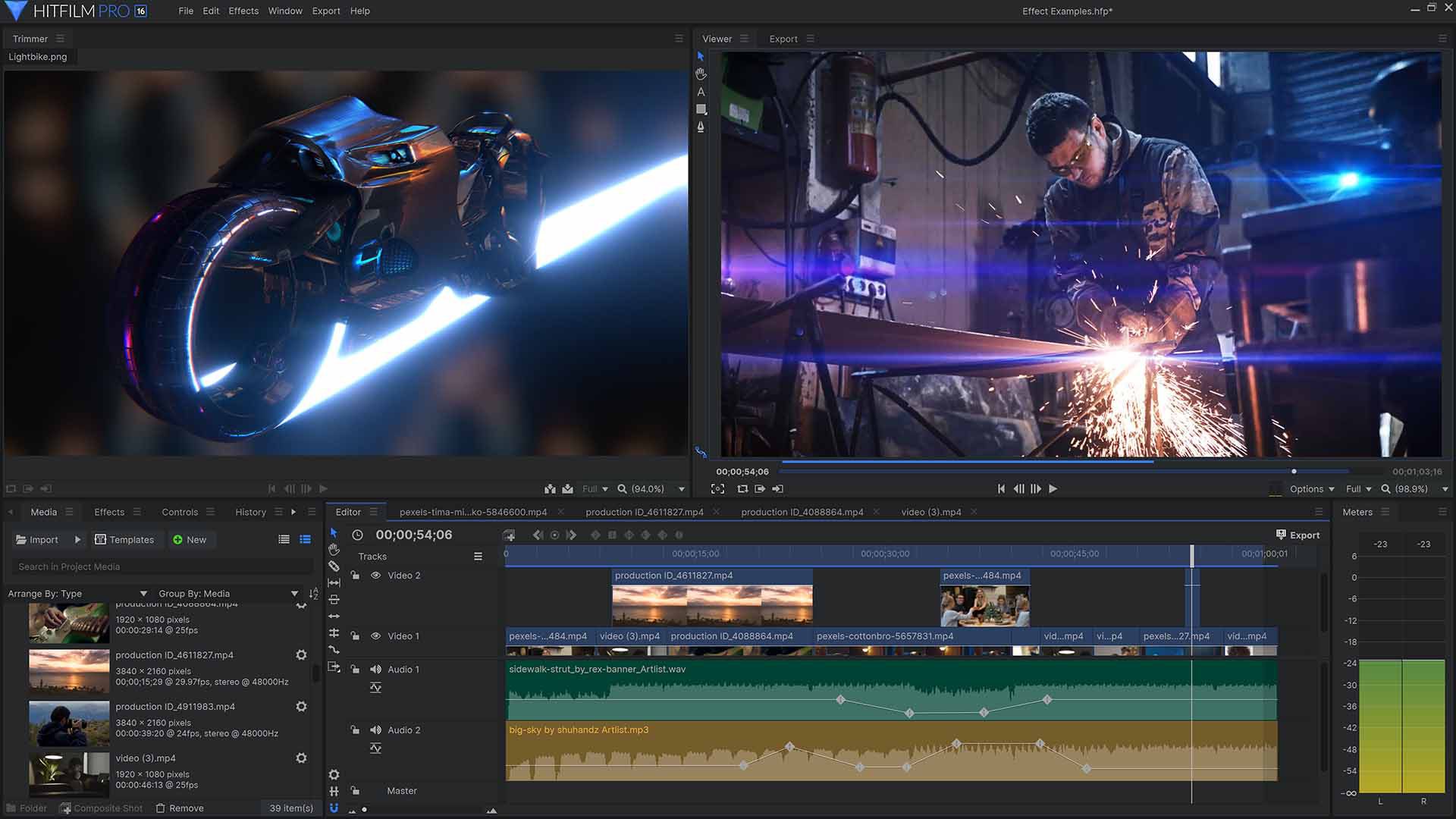
HitFilm Express gives you a powerful free package, edit your footage, layer different elements and create visual effects all in one place. You'll find tons of ready-made effects to try, like explosions, laser swords or swirling particles, plus helpful guides to get you started.
Its editing tools let you neatly trim clips, adjust timing smoothly and how to rearrange your video timeline without stress. Go deeper by stacking video layers, using masks to hide parts of clips or changing colors carefully, all without damaging your original files.
5. Lightworks
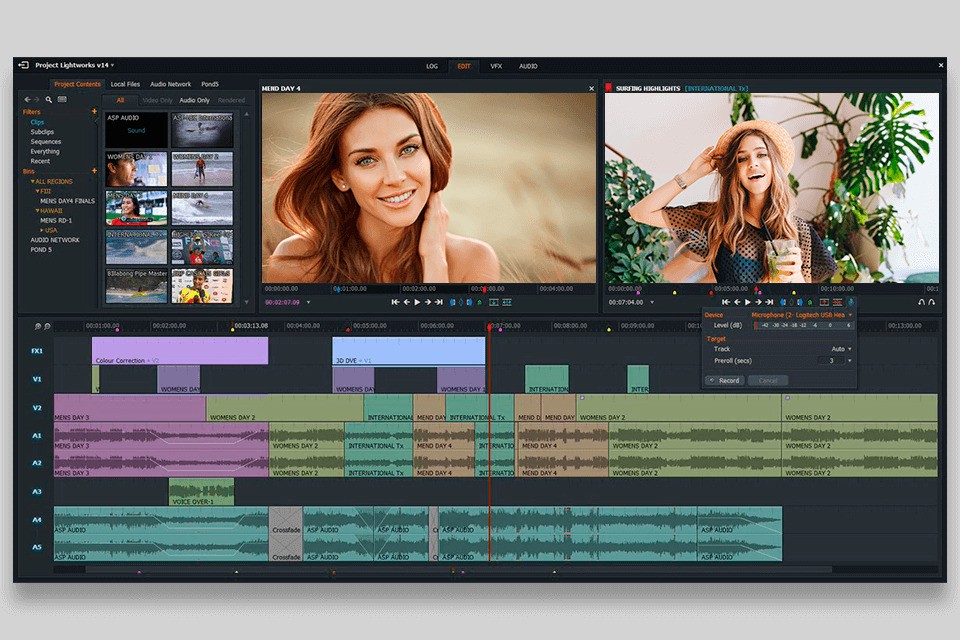
Lightworks gives you serious editing tools usually found in high-end software. You can edit footage from several cameras at once, add effects that play instantly as you work, and handle color correction easily with built-in presets.
You can smoothly edit high-resolution video files thanks to its smart proxy system. The free version lets you export videos in decent 720p quality with no watermark. Its special trimming tools help you make super precise cuts quickly and the color tools are straightforward to use.
6. VSDC Free Video Editor
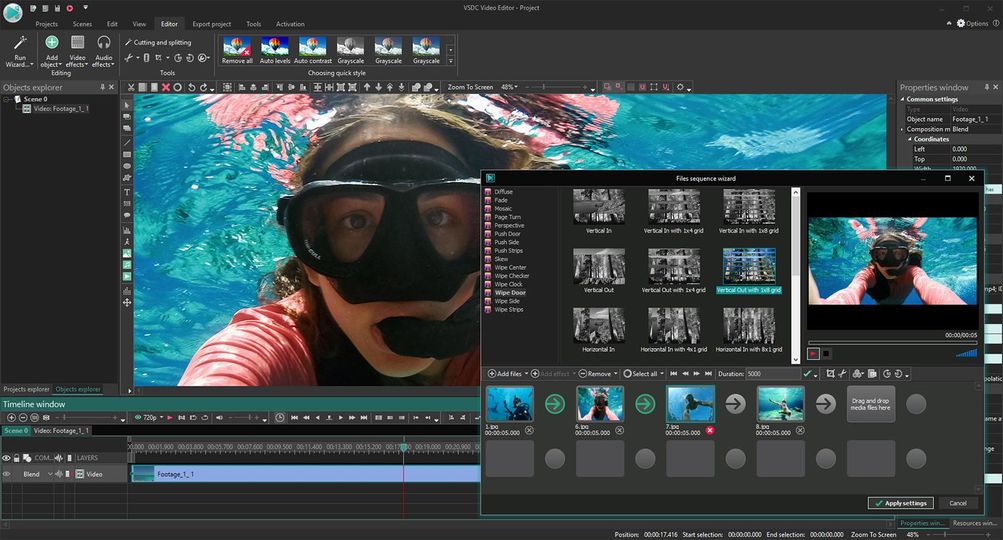
VSDC packs a lot of powerful features into a free package. It handles standard editing tasks well and adds extras like layer effects like masks and blends for creating more complex visuals.
Its color correction tools work as well as paid options, letting you adjust colors deeply using presets or manual controls. Its motion tracking sticks them onto moving things accurately.
This editor taps your computer’s full power, using all processor cores and your graphics card to speed up exports. If you work in architecture in video game design, it’s perfect for polishing trailers or gameplay clips. Stabilize shaky footage, clean up audio, and handle all essential editing tasks and your final video stays completely clean with no watermark.
7. IMovie
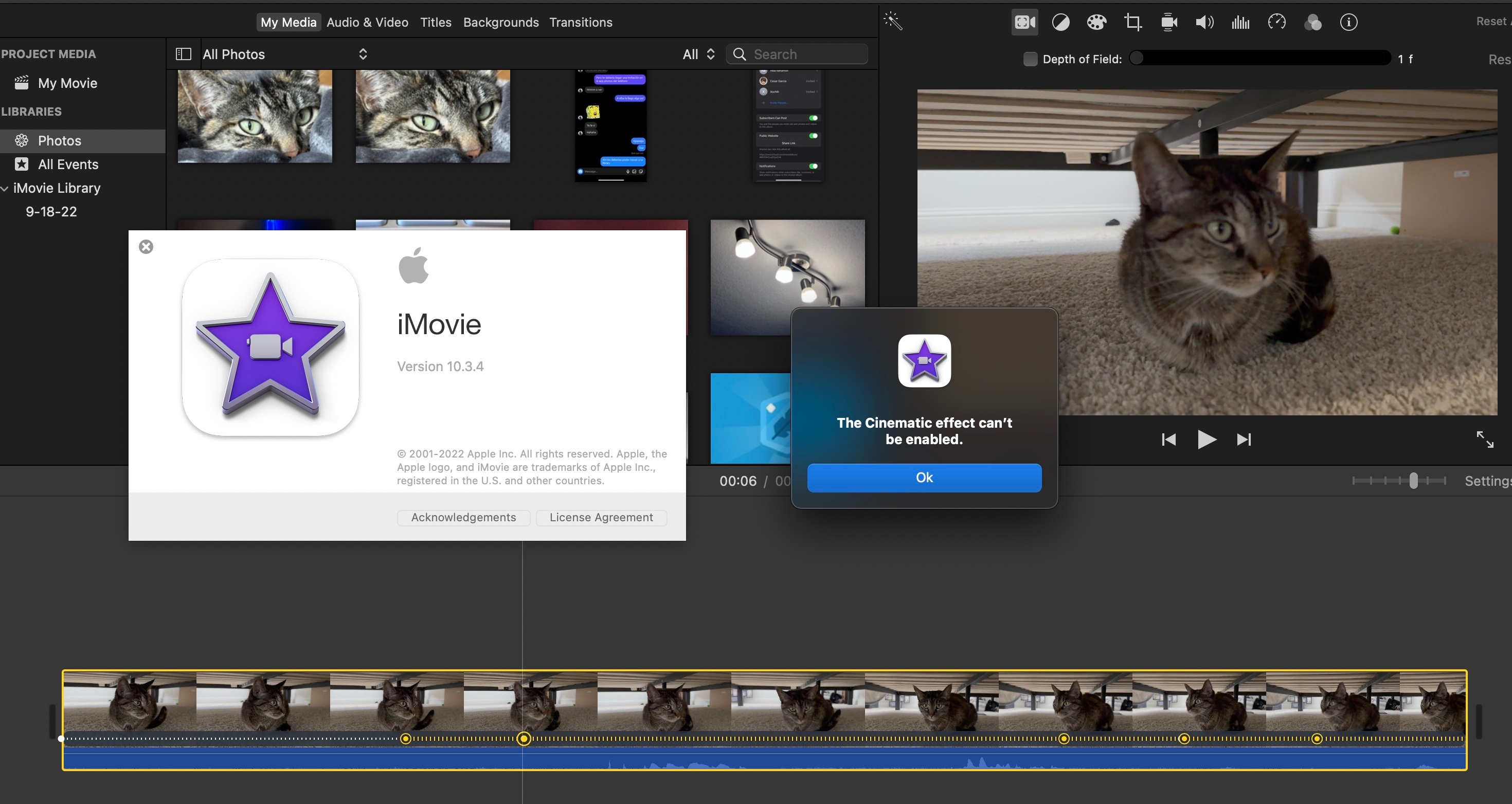
Apple makes video editing easy with iMovie. It’s free on Mac and iPhone and it looks clean and simple. You get ready-made styles and templates to make your videos feel like movies without much effort.
There’s even a feature called Magic Movie that picks the best parts of your clips and adds smooth transitions for you.
If you ever want to switch to Apple’s professional editor, Final Cut Pro, moving your work over is straightforward. You can export your finished videos in great quality, including 4K, with no watermark.
8. Kdenlive
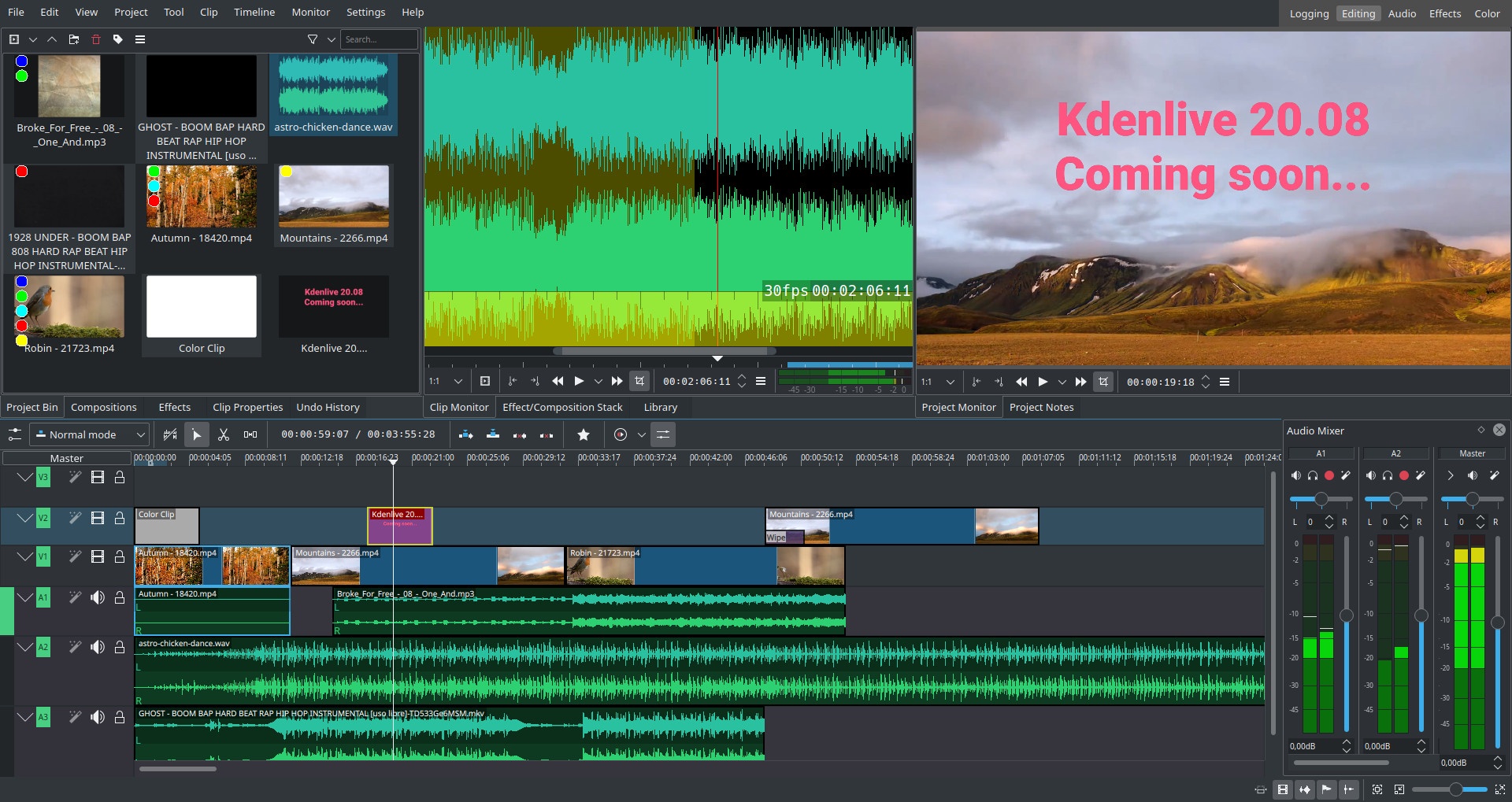
Kdenlive is a powerful free video editor that works well on Linux, but also runs on Windows and Mac. It gives you serious editing tools without costing a thing. The timeline lets you layer clips inside other clips, set up keyboard shortcuts that work for you and handle large video files smoothly.
You can adjust effects like sound levels or green screen backgrounds frame by frame, giving you lots of room to be creative. It automatically saves backups of your work, so you won’t lose progress if something goes wrong. The team behind it keeps updating the software to work with new video formats and types of files.
9. Blender’s Video Editor
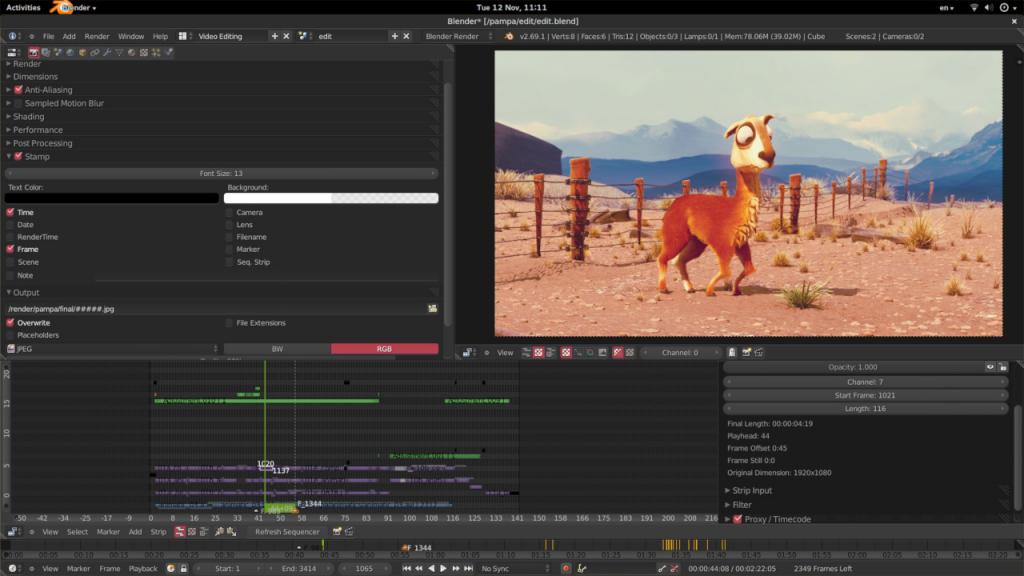
You probably know Blender for making 3D models, but it also has a really good video editor built right in. It’s called the Video Sequence Editor. This tool lets you work with several video tracks at once, change clip speeds easily and move or resize clips for cool motion effects.
You can mix your 3D scenes straight into your regular video projects. It handles sound too, with its own audio tools for smoothing volume changes and showing sound waves visually. Since Blender is free for anyone to use and improve, this editor has no watermarks and gets better all the time.
10. Adobe Premiere Clip
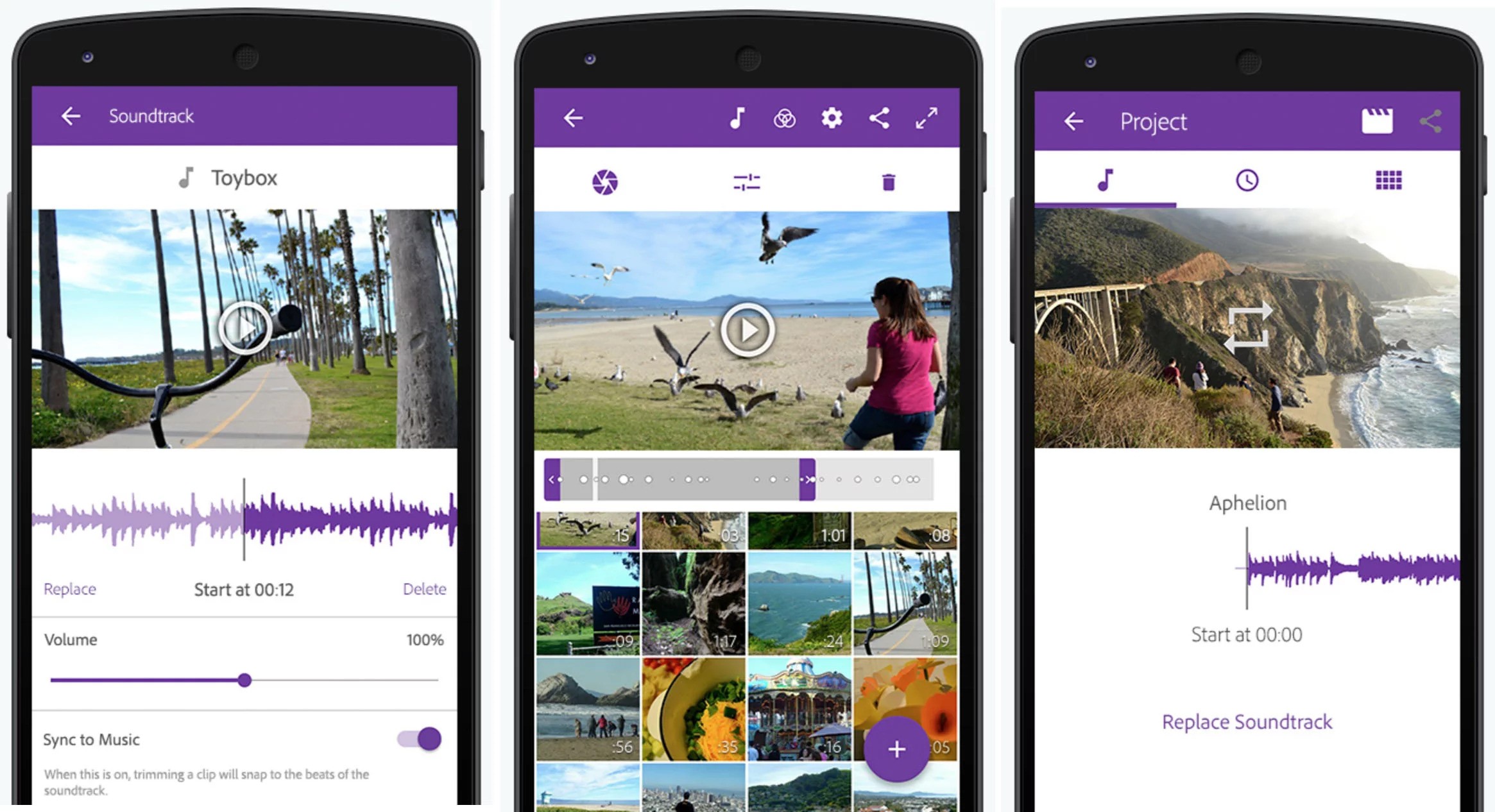
Adobe stopped making new updates for Premiere Clip, but you can still find and use the older version on your phone. It’s handy for quick edits on the go. Just give it some photos or video clips and it automatically makes a short movie for you by picking the best bits based on the sound and action.
Adding transitions or changing speeds is simple, you drag things around. When you’re done, you can send your project straight to the full Premiere Pro app on your computer for more detailed work. Even though Adobe isn’t updating it anymore, the old Clip version runs fine without watermarks on both Android and iPhone.
11. CapCut
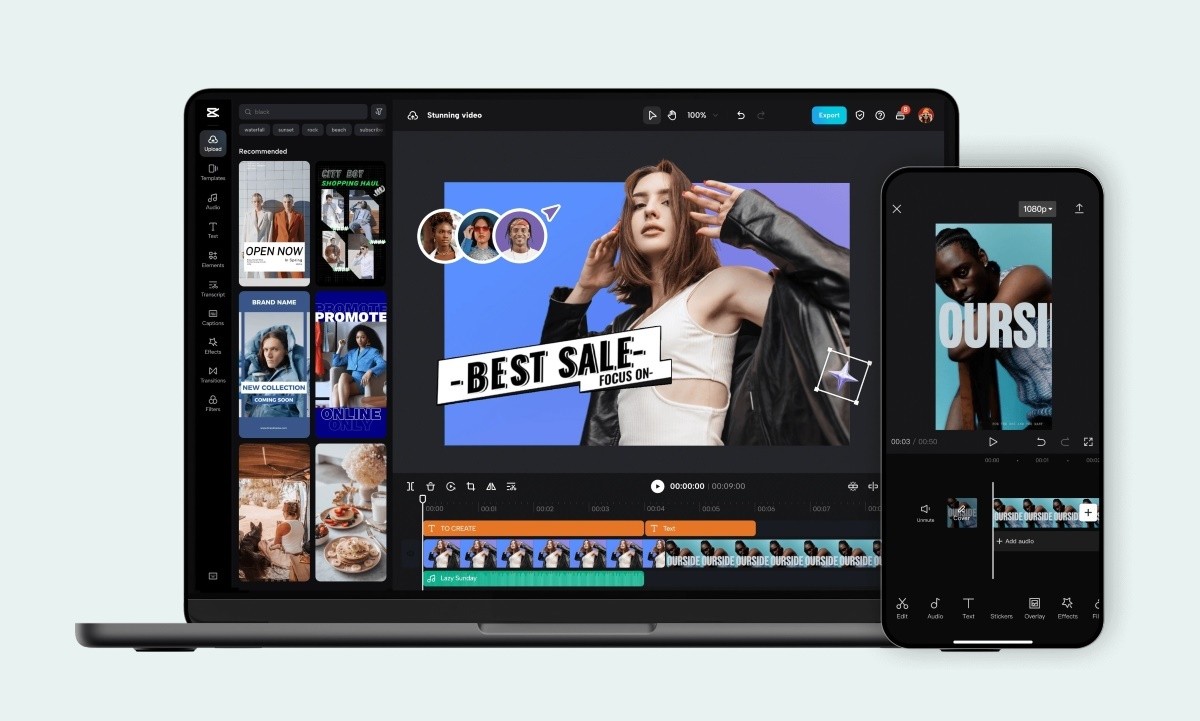
CapCut is built for quick, ready-to-post videos. Its phone app is simple, so you won’t waste time learning it. Use pre-made layouts for TikTok or Instagram, no resizing headaches.
Add stickers, moving text, or trendy filters to keep things fresh. You can even pull off smooth animations or green screen effects usually needing a computer.
When done, export clean 1080p videos with no watermark. Perfect for editing on the go. If you need help getting your videos looking clear on YouTube, check our guide on uploading 4K videos with perfect quality.
12. FilmoraGo
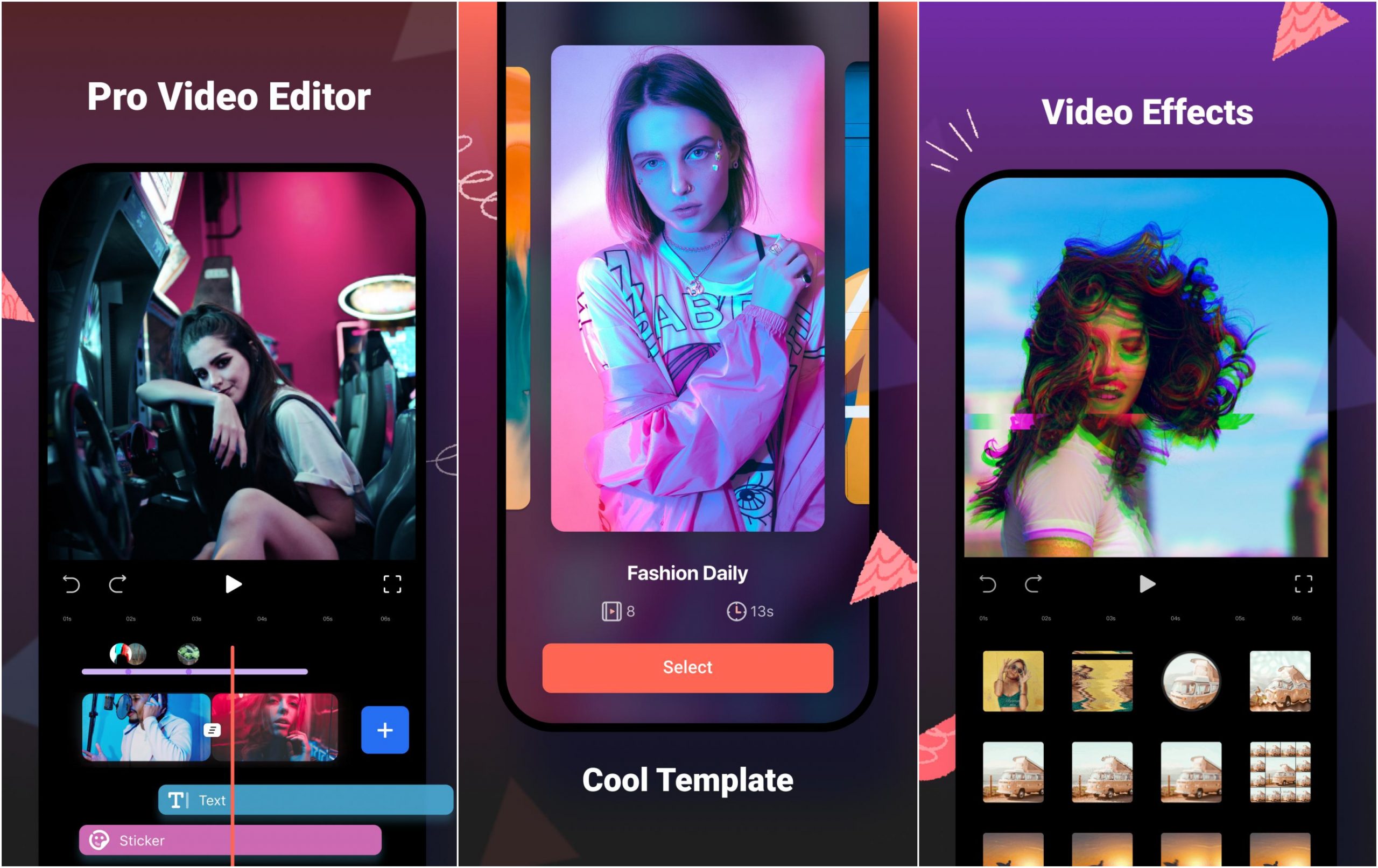
FilmoraGo gives you good tools without making things complicated on your phone. It includes free music, sound effects and title styles to make your videos more interesting. Easily show two clips at once with split-screen or put one video inside another.
You can also add slow-mo or fast-forward effects and smooth transitions between scenes to keep people watching. While some fancy extras cost money, the main editing features work great for free. Your finished videos come out clean with no watermark attached.
13. InShot
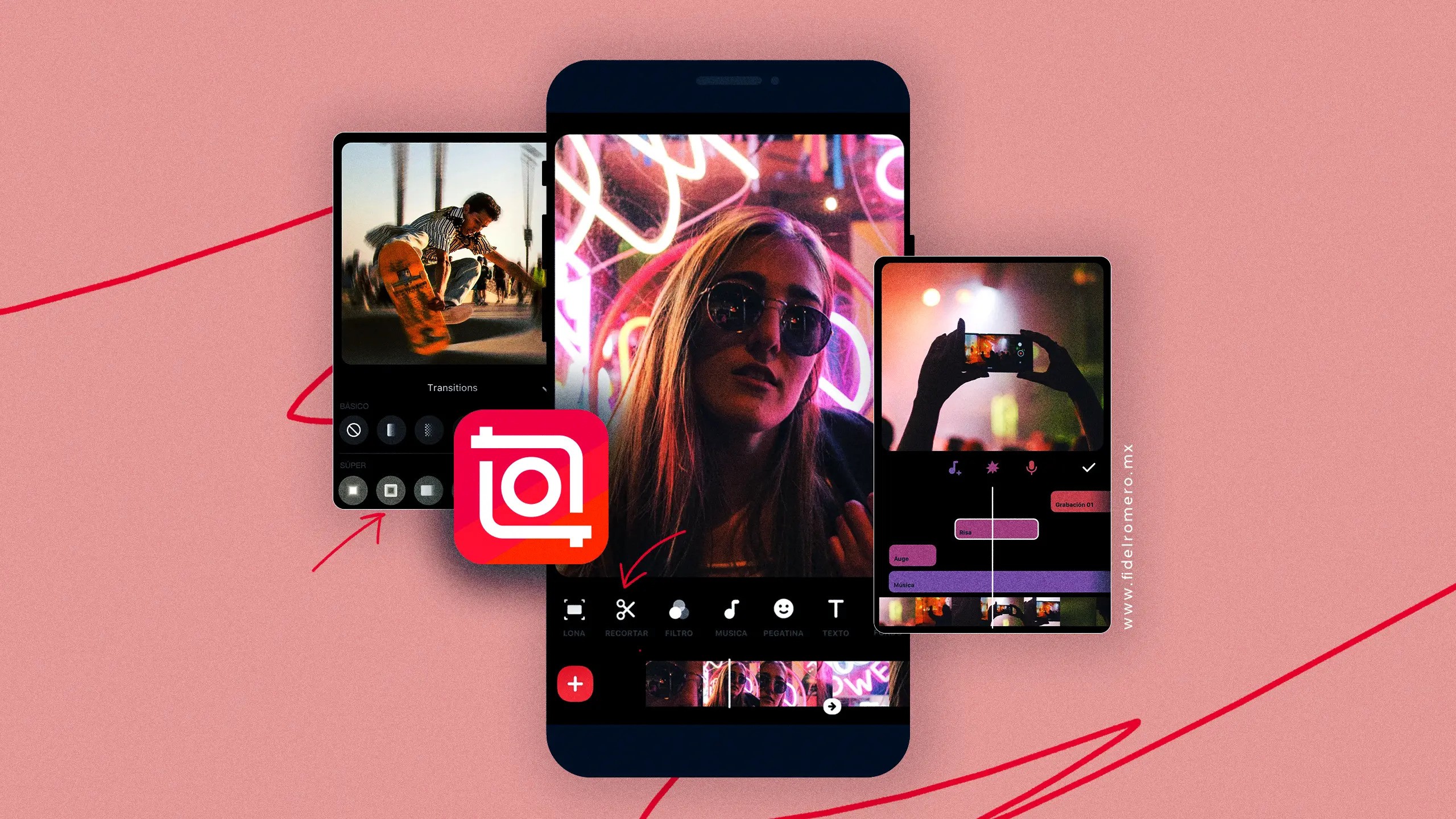
InShot is great for quick video edits, especially for social media, podcasts or vlogs. You can easily cut, trim or split clips on your phone on you use Android or iPhone. It also lets you blur backgrounds or resize videos to fit any platform like Instagram or YouTube.
Adding music is simple with its built-in songs, and you can record voiceovers right inside the app. Best part? You can export videos in sharp 4K quality without any watermark. It’s perfect if you’re just starting out or making videos for work but don’t need super complex tools.
Read Also: How To Make Your Travel Videos Go Viral
14. WeVideo
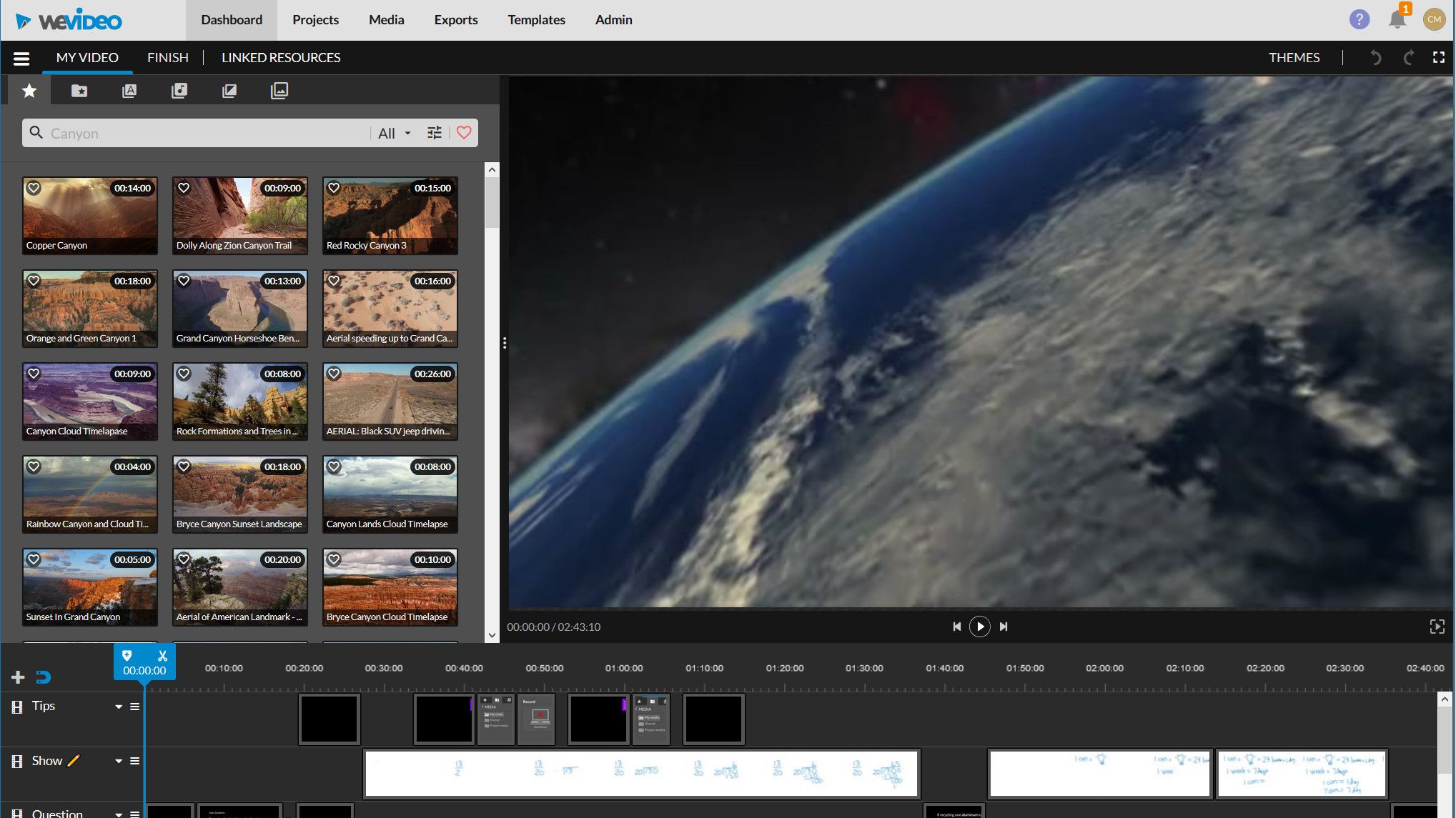
WeVideo works online, so you don’t need big downloads, it saves your projects to the cloud. This makes it easy to start editing on your phone and finish on a computer or even work with friends on the same video.
You’ll find handy extras like ready-made storyboards, cool text effects and a library of free photos and videos to spice up your clips. Features like removing green screens or automatically lowering music when someone talks help polish your videos. Even the free version lets you export clear HD videos (720p) without watermarks.
15. Active Presenter
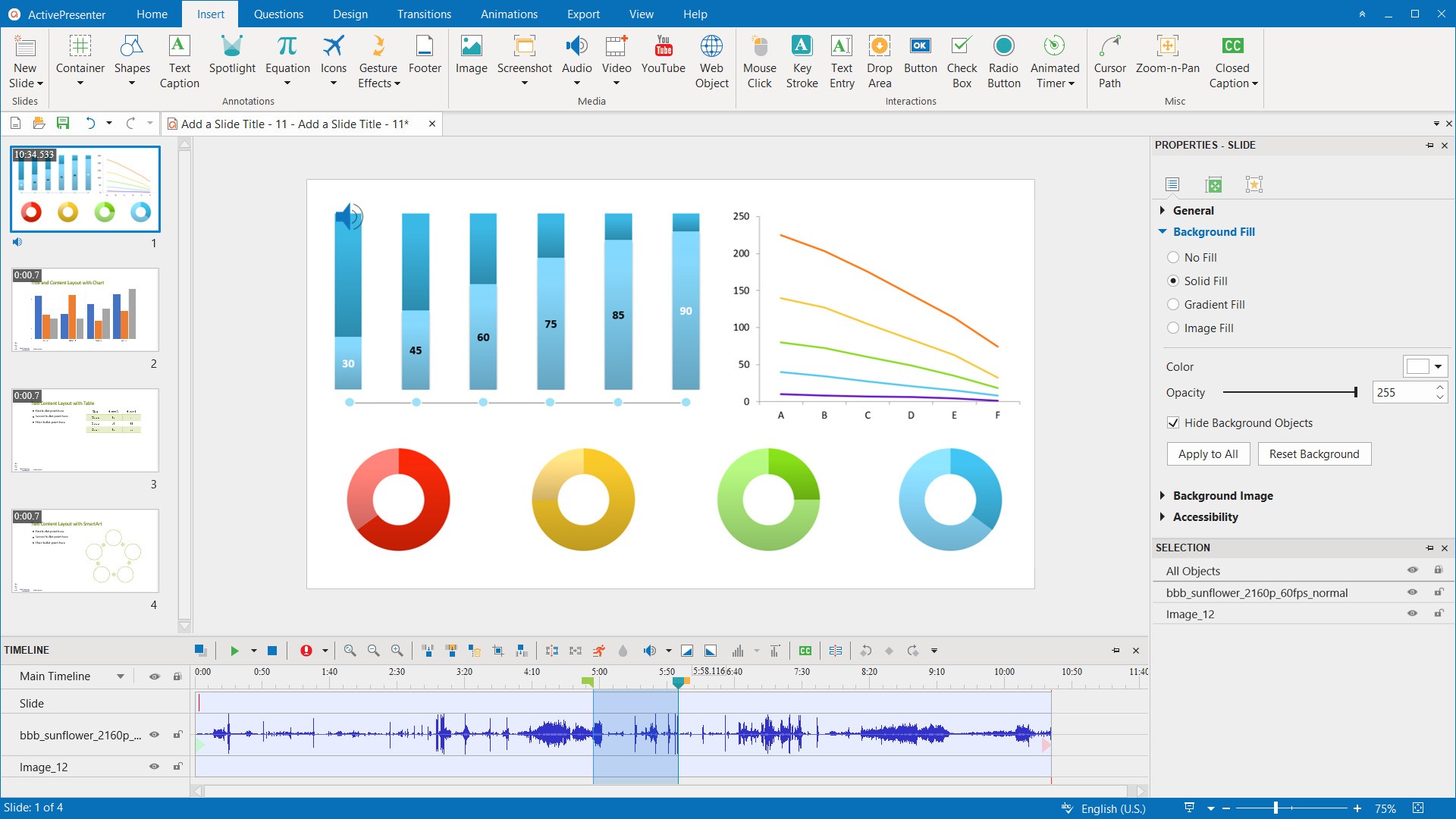
This tool grabs your screen, webcam and sound all at once, perfect for making clear how-to guides or slideshows. You won’t see any company logo on your finished videos, so they look clean and professional.
Adjust your recordings easily, remove green backgrounds, know your mouse movements, or zoom in on key spots. Save your work as MP4 or other common video types, which works well for almost any project.
16. VideoProc Vlogger
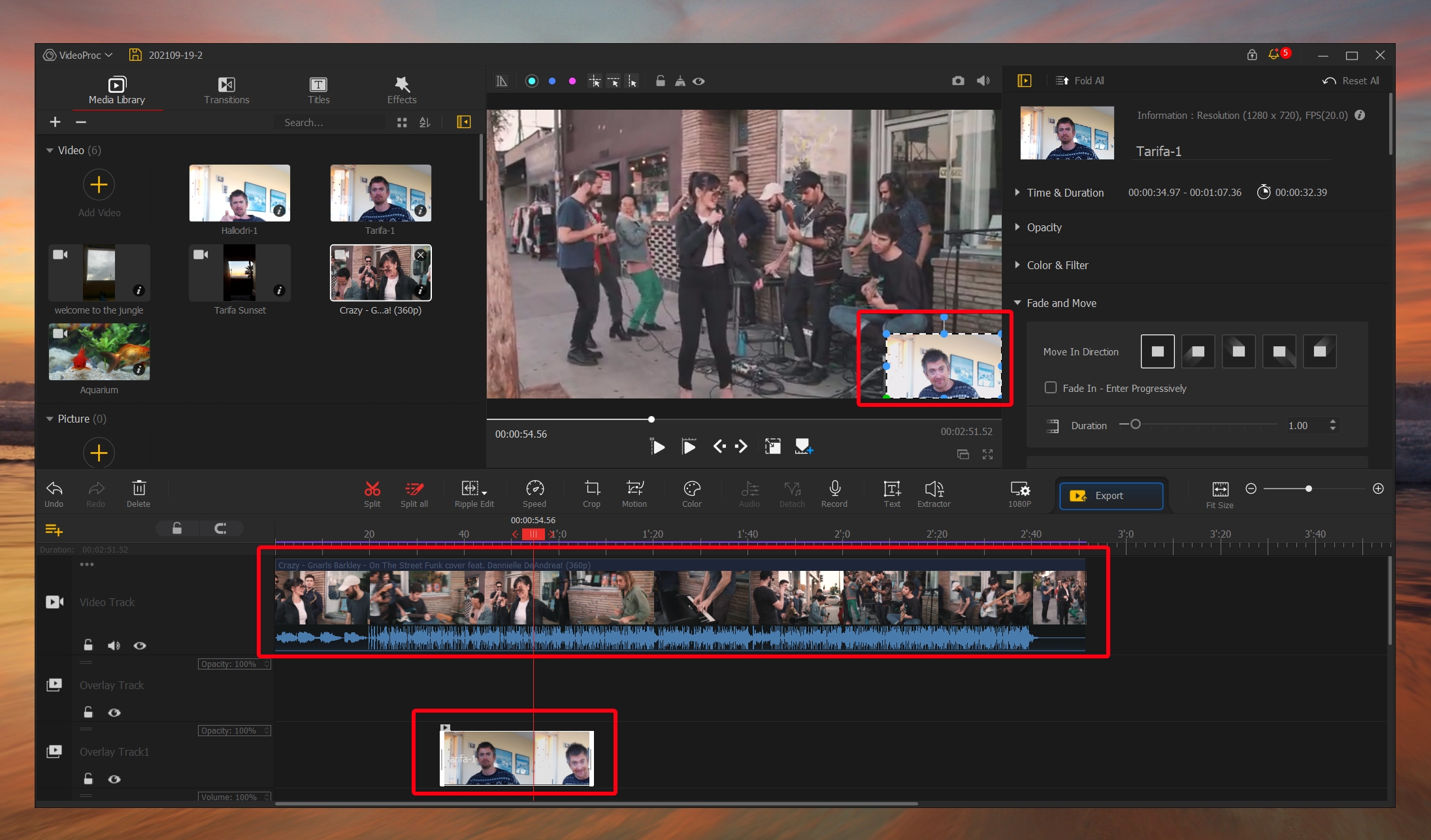
It’s super easy to jump into editing here, even if you’re just starting out. Add as many video layers as you need, track moving objects, edit 4K footage smoothly and it handles the heavy lifting fast using your computer’s power.
Spruce up your clips with fun effects, adjust colors to set the mood, or use custom transitions between scenes. Share your videos straight away with no watermark tagging along.
17. VideoPad Video Editor
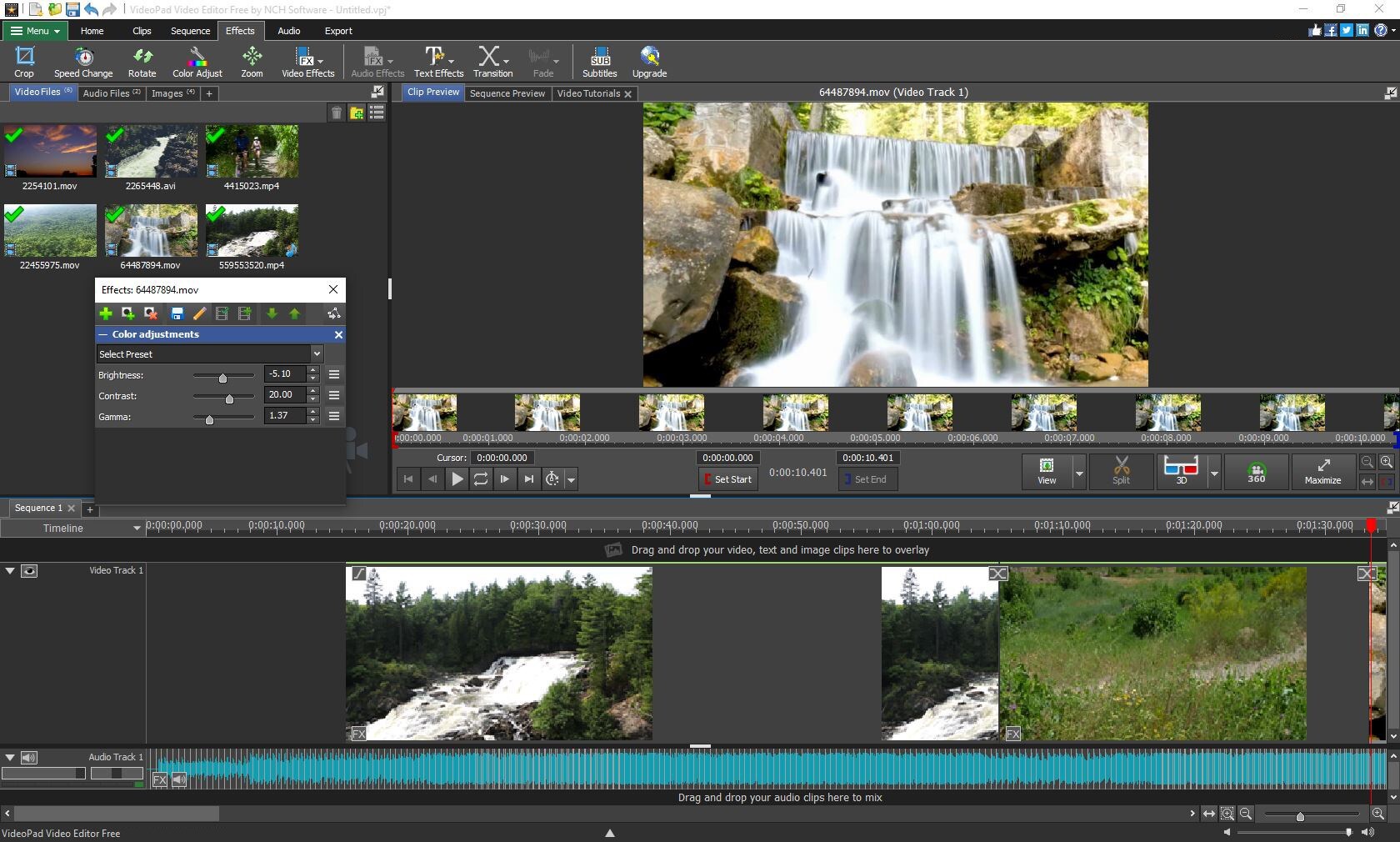
Beginners will love how simple this feels for quick edits. Just drag files in, add filters or text and clean up audio in seconds. Your videos save at full HD quality without any unwanted logos, best for posting on social media.
Switch between different camera angles easily and work with most video types you already have. The layout stays tidy and distraction-free, so you can focus on making your clips look better without fuss.
18. Avid Media Composer First
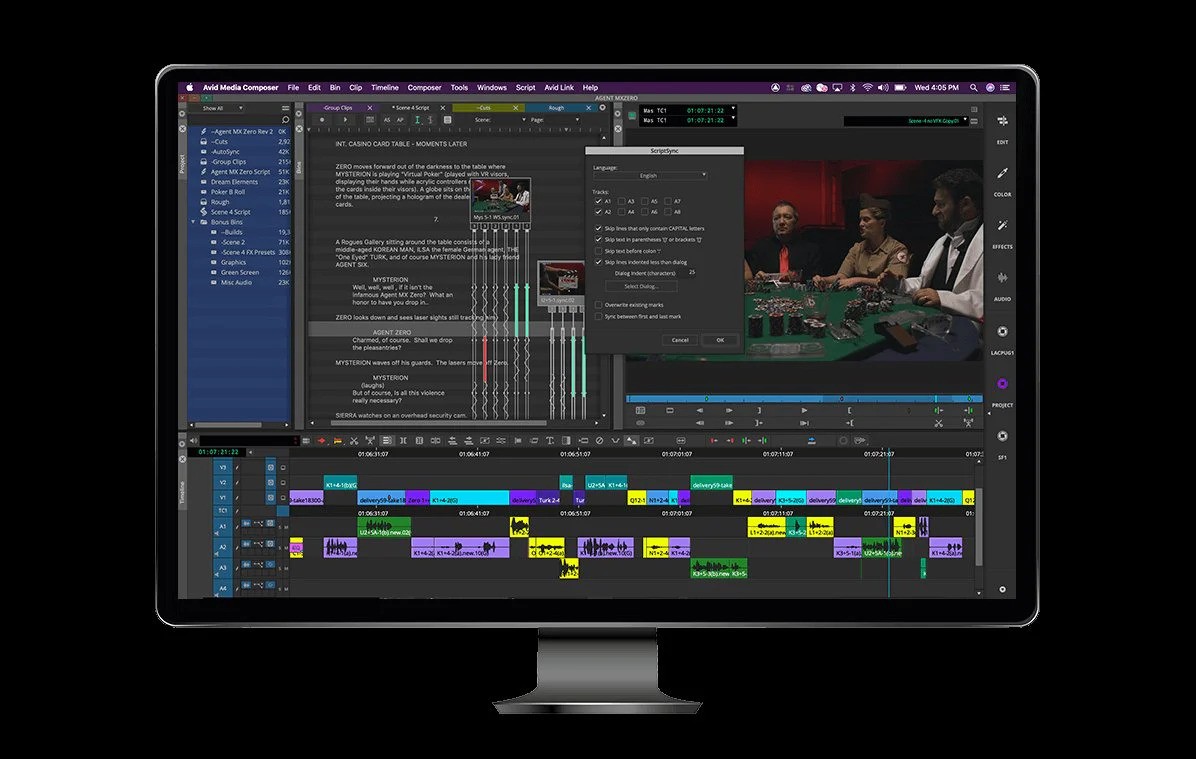
This is a simpler version of the professional Avid editing software. It gives you solid editing features like working with multiple video tracks, precise cutting tools, and strong audio controls.
If you use the free version, you can export your videos in full HD quality 1080p with no watermark. It’s made for people who take editing seriously, like independent filmmakers or dedicated content creators, who want reliable tools without the high cost.
19. Canva Video Editor
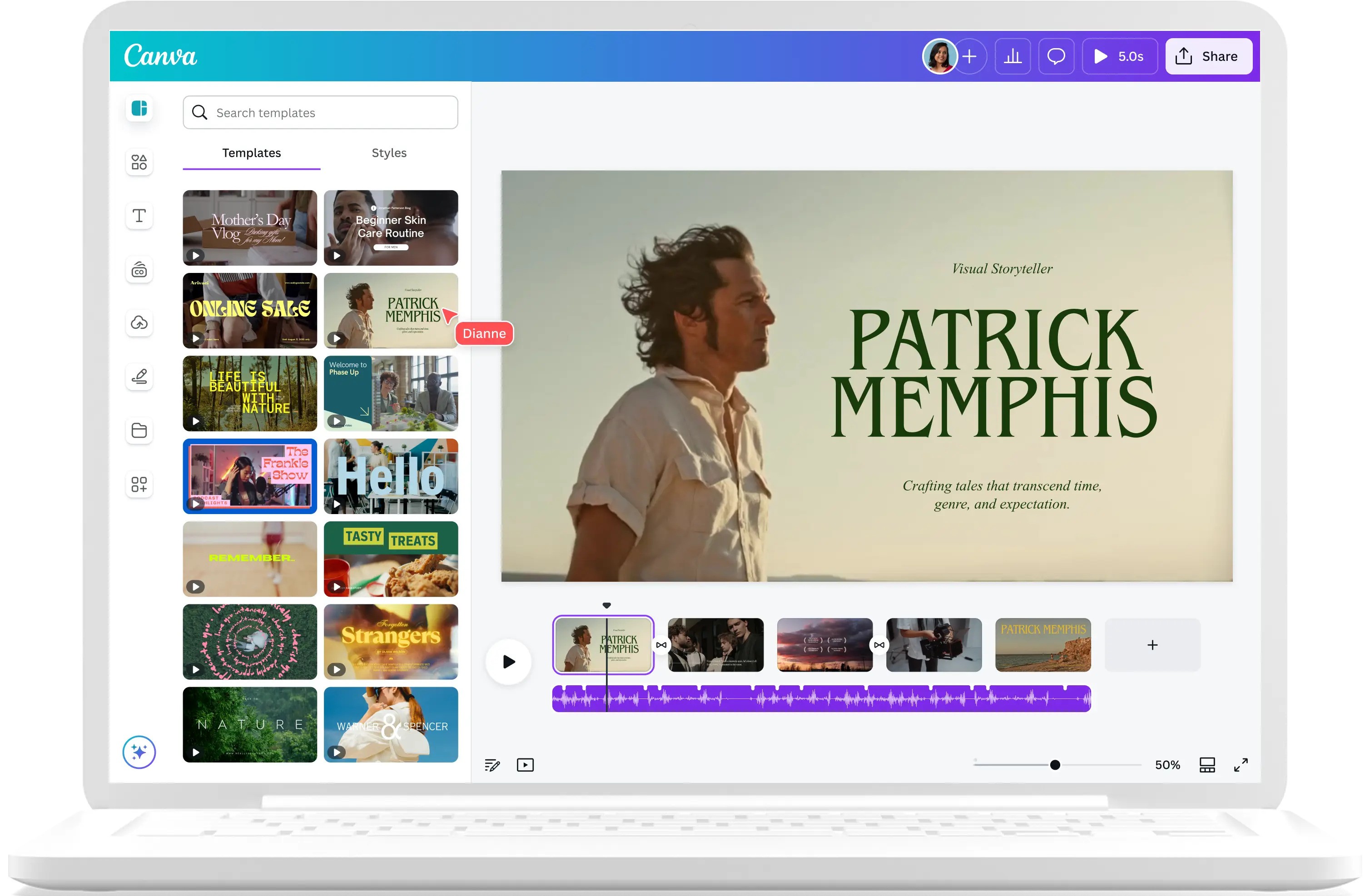
Canva’s video tool is super easy to use, especially if you like working with ready-made designs. It has tons of templates and graphics you just drag and drop onto your timeline to build videos fast.
Even on the free plan, you can export in full HD without any watermark. It’s perfect for people making social media content or marketing videos who need short, eye-catching clips quickly. Plus, you can save your company logo and brand colors right in Canva, so every video you make looks like it belongs to your business.
20. HitPaw Video Editor
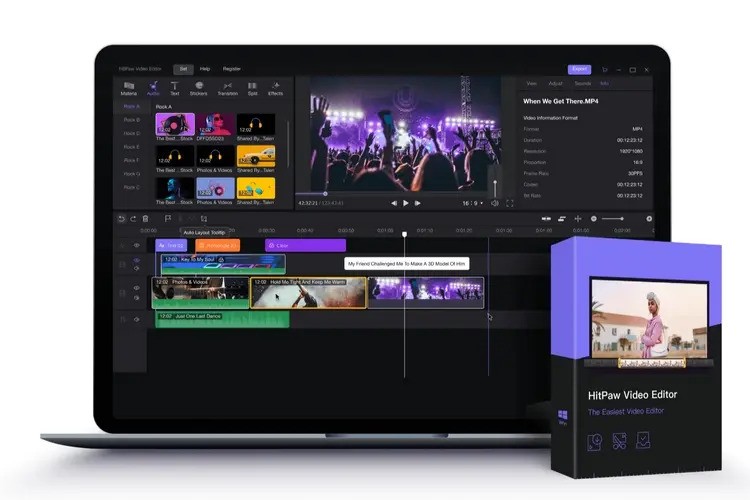
HitPaw keeps things straightforward but still packs a punch. You get basic tools like transitions and text overlays, plus more advanced features such as screen recording and multi-track editing.
What’s really handy is that the free version lets you export videos without a watermark, this isn’t common for beginner editors. Adding effects or filters is simple and the software renders your projects quickly.
21. Olive Video Editor
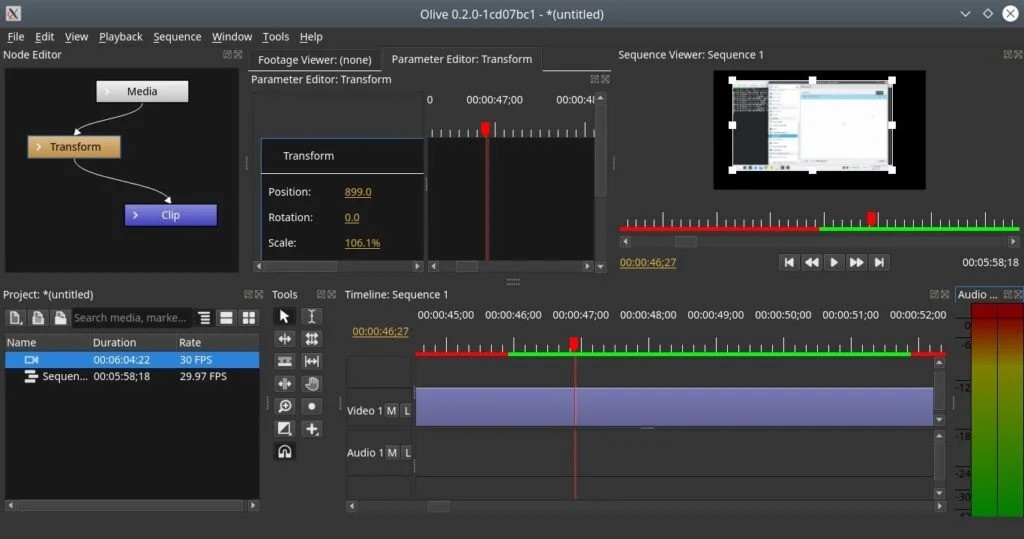
Olive is a free video editing program you can use on Windows, Mac or Linux computers. It gives you the essential tools for cutting and arranging clips, plus a live preview so you see changes right away.
The software runs smoothly even on older machines. While the team is still adding new functions, your finished videos won’t have any annoying logos. Many people like its tidy layout and see it as a solid free option compared to expensive editors.
22. Clipchamp
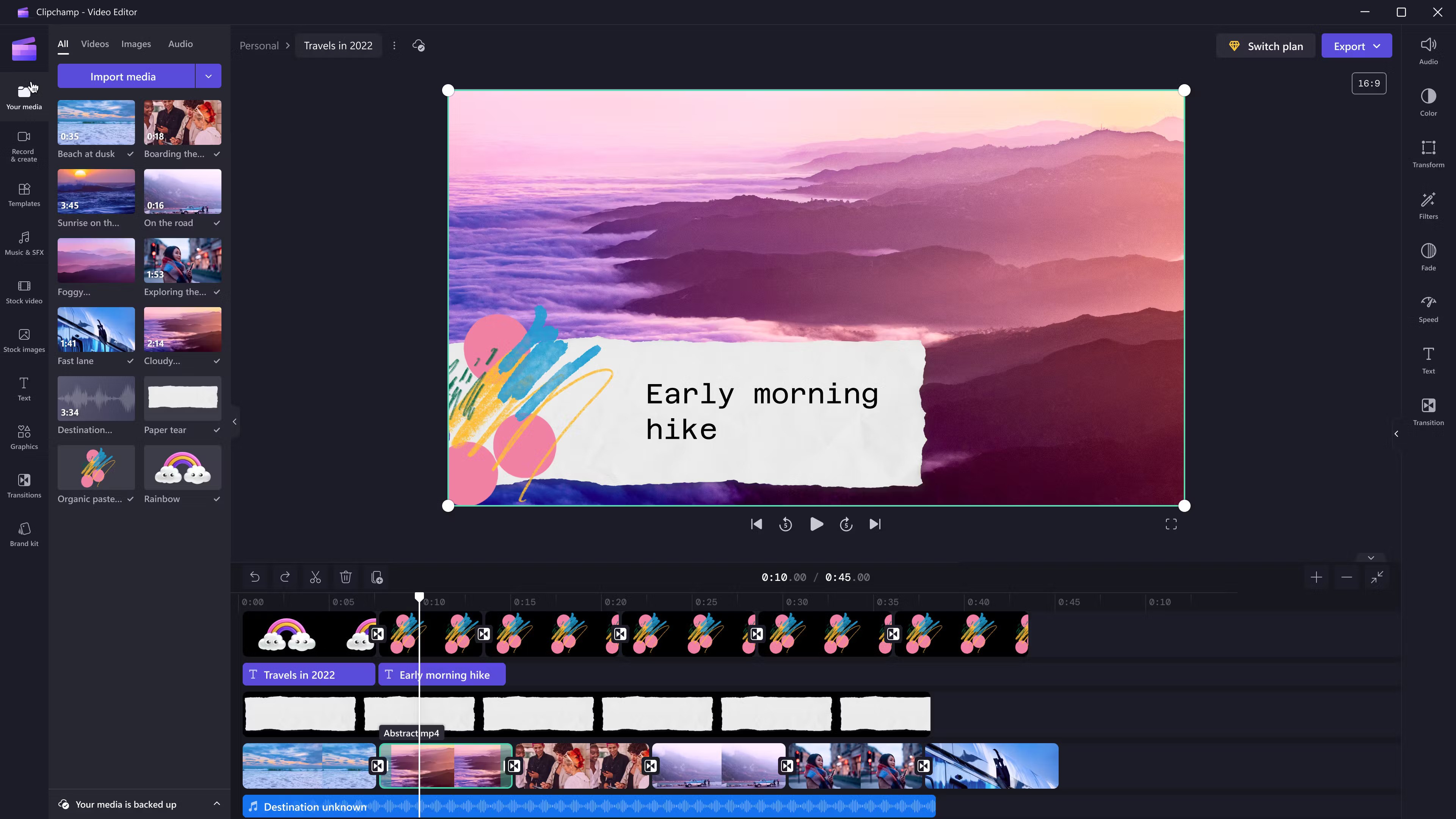
Clipchamp works entirely in your web browser, no download needed. Its layout is simple and clear, perfect for making quick videos online. You can create HD videos for free without watermarks, which is great when you need something fast.
It includes handy extras like free stock clips, easy text adjustments, and smooth transitions. Since it runs in your browser, you can edit videos from any computer, even at school or the library.
23. Vllo
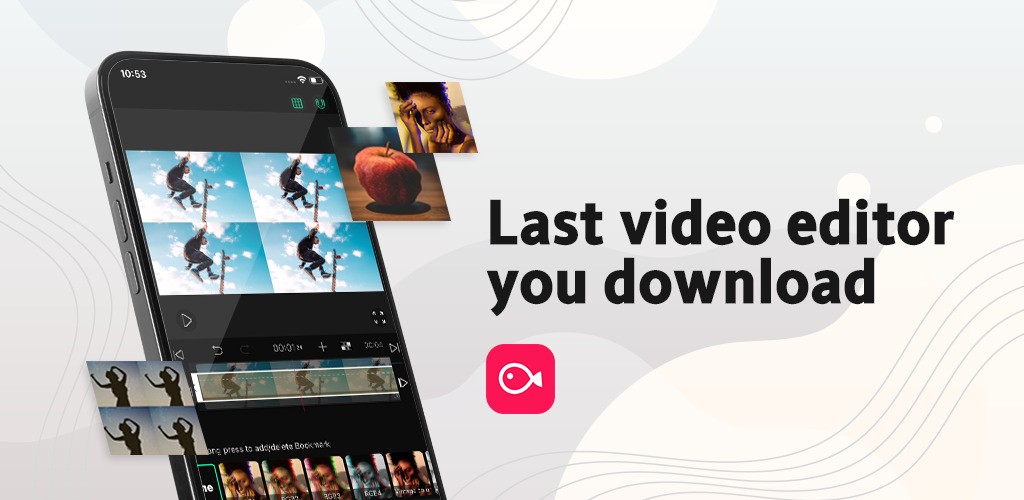
Vllo brings professional editing to your phone or tablet, working on both iOS and Android. You get features like layering multiple video tracks, adding stylish transitions, animated text, and free music tracks.
Even the free version lets you export videos with no watermark, making it popular with vloggers and social media creators. The layout is intuitive and uncluttered, so you can edit smoothly while traveling or between tasks.
24. VN Video Editor
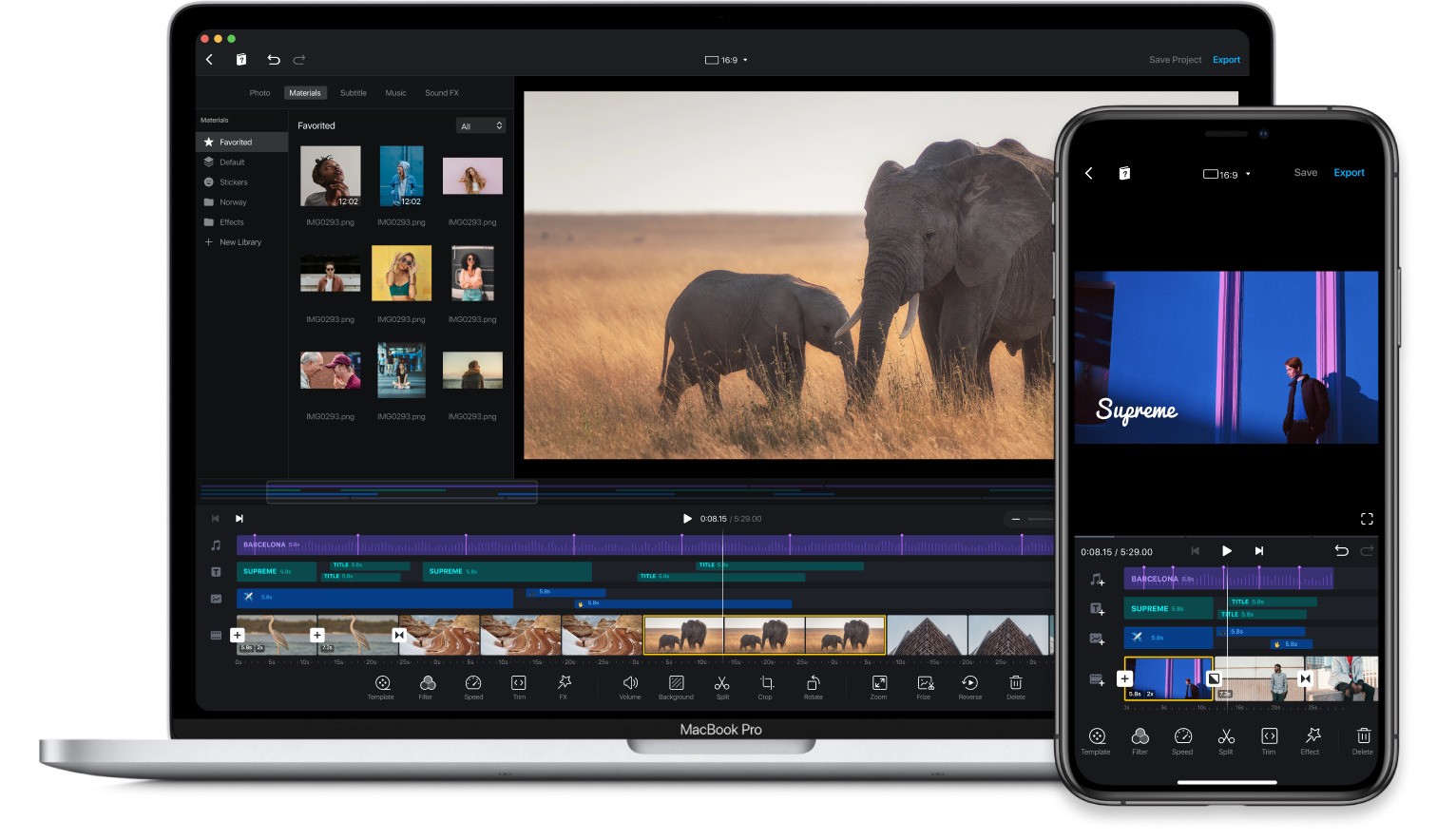
VN packs powerful mobile editing into a straightforward app. You can adjust colors precisely, create smooth animations with keyframes and work with multiple layers, all on your phone.
Exporting HD or 4K videos leaves no watermark and you’ll find a large collection of free music plus easy subtitle tools. Its clean design makes advanced features accessible for YouTubers, influencers or anyone casually editing videos. People love how VN balances serious editing power with an interface that feels natural on a small screen.
FAQs About Video Editing Apps Without Watermark
What Features Matter Most In A Free Video Editor?
Look for tools that let you layer multiple video clips, change colors simply, clean up audio noise and save videos in HD (1080p). Also check if you can move buttons around to suit you, if other users share tips online and if the app gets regular fixes that keeps editing smooth.
Can Free Apps Edit 4K Videos?
Some free apps like DaVinci Resolve or iMovie let you save 4K videos without slapping their logo on it. But your phone or computer might struggle to play them smoothly while editing, so you could need to use lower-quality previews first.
Are Phone Video Editors As Good As Computer Ones?
Apps like CapCut or InShot pack in lots of fun effects and smooth transitions, great for Instagram or TikTok clips. But for serious color work or fancy visual tricks, desktop programs still win.
How Do I Dodge Watermarks Without Paying?
Just stick to the free stuff that comes with the app. Don’t tap "try premium" buttons or trial offers, they’ll add that annoying logo.
Is Editing Videos Online Safe And Stable?
Services like WeVideo keep your videos locked up tight with encryption and backups. But if your internet’s spotty, editing might lag or cut out. For big projects, a desktop app that works offline might save headaches.
Do Free Open-source Editors Get Proper Help?
Apps like Shotcut or Kdenlive have real people behind them, passionate users and coders who fix bugs, add cool tools, and answer questions in forums. You won’t get corporate support, but the community’s got your back long-term.
Final Thoughts
If you want to make great videos without paying, try these free video editors, they won't put a watermark on your work. You'll find tools for fixing colors, using social media templates or working with others online. Just pick one and start creating videos that look professional.
Also Check Out: Best YouTube Channels For Piano Lessons